Et si vous vouliez permettre à votre conjoint ou à vos enfants de voir où se trouvent vos clés, vos sacs ou l'AirTag de votre animal ? Peut-être aimeriez-vous que votre partenaire puisse retrouver la voiture familiale dans un parking bondé. Or, il est impossible de partager directement la position d'un AirTag, car seul son propriétaire peut la suivre. Cependant, il existe des solutions pour partager sa position en temps réel avec vos proches. Cet article vous guidera pas à pas dans l'utilisation d'outils comme Localiser et la configuration du partage avec votre famille.
Ce dont vous avez besoin avant de partager l'emplacement d'un Airtag
Avant de commencer, assurez-vous que tout est correctement configuré. N'oubliez pas que votre AirTag est lié à votre identifiant Apple et que vous ne pouvez pas en transférer la propriété. De plus, un AirTag ne peut être partagé qu'avec cinq autres personnes, soit six accès au total. L'objectif est plutôt de partager ses données de localisation via votre réseau Localiser. Les prérequis sont donc les suivants :
- Appareil à jour : Votre iPhone doit exécuter iOS 14.5 ou une version ultérieure, ou votre iPad doit exécuter iPadOS 14.5 ou une version ultérieure.
- Configuration à 2 facteurs : Vous et chaque membre de votre famille devez activer l'authentification à deux facteurs pour vos identifiants Apple et le trousseau iCloud. De plus, il est impossible de partager la position d'un AirTag avec un compte enfant.
- Annuaire téléphonique : Vérifiez que vos contacts respectifs sont bien enregistrés avec les adresses e-mail Apple ID correctes. De plus, les AirTags ne peuvent être partagés qu'avec des utilisateurs possédant chacun un identifiant Apple unique.
- Internet: Assurez-vous que vous disposez tous d'une connexion internet ou Wi-Fi stable.
- Accès au lieuAssurez-vous d'avoir configuré le partage de position et la localisation de votre appareil sur votre iPhone pour qu'ils se mettent à jour automatiquement.
Voyons maintenant comment partager votre AirTag avec vos proches. La procédure complète dépend toutefois des paramètres de votre appareil.
sur iPhone/iPad
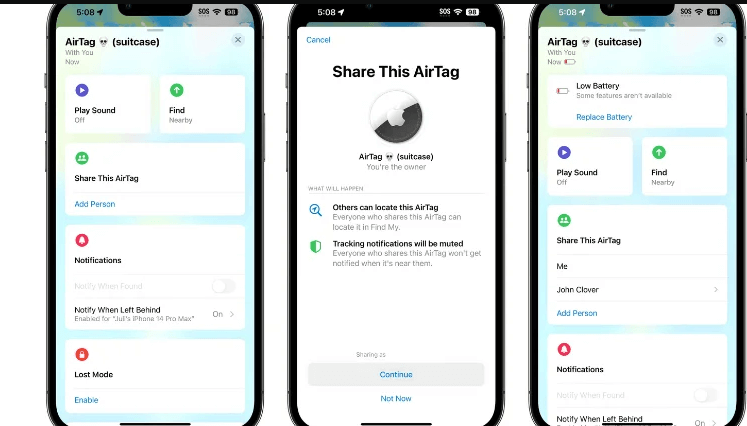
La méthode la plus simple consiste à utiliser un groupe familial iCloud existant. Ainsi, lorsqu'une personne est ajoutée à ce groupe, elle peut automatiquement voir les objets dans l'application Localiser. Pour partager un AirTag spécifique :
- Accédez à « Trouver mon application »
- Ensuite, sélectionnez l'onglet « Articles » en bas de la page.
- Choisissez l'AirTag que vous souhaitez partager.
- Sous « Partager cet élément », cliquez sur « Ajouter une personne ».
- Sélectionnez maintenant le contact que vous souhaitez partager avec l'AirTag. Il est préférable de saisir son identifiant Apple.
- Ensuite, appuyez sur le nom de la personne et cliquez sur le bouton « Partager » en haut à droite.
- Cette commande envoie une invitation ; le destinataire recevra une notification et pourra accepter ou refuser.
dans iOS 17
Apple a introduit une fonctionnalité de partage plus directe dans iOS 17. Vous pouvez désormais partager la position d'un objet avec n'importe qui, même s'il ne fait pas partie de votre groupe de partage familial.
- Ouvrez l'application « Localiser »
- Ensuite, sélectionnez l'onglet « Articles » en bas de la page.
- Choisissez l'AirTag que vous souhaitez partager.
- Sous « Partager cet élément », cliquez sur « Partager avec des personnes ».
- Sélectionnez un contact ou saisissez son adresse e-mail Apple ID.
- Cela envoie une invitation par Messages.
- Le destinataire recevra une notification et pourra accepter ou refuser.
Comment désactiver le partage de position Airtag
Tout comme vous pouvez partager la position de votre AirTag, vous pouvez aussi arrêter de la partager. Vous apprécierez également le fait que la personne avec qui vous partagiez auparavant ne la verra plus. Suivez ces étapes simples pour ce faire :
- Ouvrez l'application « Localiser » puis cliquez sur l'onglet « Objets ».
- Sélectionnez l'élément que vous partagez, puis appuyez sur le nom de la personne avec qui vous le partagez.
- Cliquez sur « Supprimer » et, lorsque la fenêtre de confirmation apparaît, confirmez à nouveau.
Problèmes courants liés au partage d'Airtag et leurs solutions
Il arrive que les choses ne se passent pas comme prévu. Voici un guide rapide des problèmes courants que vous pourriez rencontrer lorsque vous partagez la position de votre AirTag, ainsi que leurs solutions.
| Problèmes | Correctifs |
| L'option « Partager cet élément » est manquante. | Votre appareil n'est peut-être pas à jour. Accédez à Réglages > Général > Mise à jour logicielle et installez la dernière version d'iOS ou d'iPadOS. |
| La famille ne peut pas voir l'« AirTag ». | Ils doivent vérifier qu'ils ont bien accepté l'invitation en se rendant dans l'onglet « Éléments » et non dans l'onglet « Appareils ». Assurez-vous également que vous disposez tous les deux d'une connexion Internet stable. |
| Impossible d'inviter une personne en particulier | Veuillez vérifier que vous avez enregistré vos coordonnées respectives avec l'adresse e-mail Apple ID correcte. De plus, l'authentification à deux facteurs (2FA) doit être activée pour chacun de vous. |
| La localisation ne se met pas à jour. | Il se peut que votre AirTag soit hors de portée des appareils Apple. Déplacez-le. Assurez-vous également que le Bluetooth et la géolocalisation sont activés sur votre iPhone. |
| Aucune mise à jour de localisation pour les utilisateurs partagés | Il se peut que les paramètres soient mal configurés. Ouvrez l'application Localiser et suivez la procédure de partage de la position de votre AirTag. Vérifiez également que les services de localisation sont activés. |
| Le partage ne fonctionne plus. | Redémarrez votre iPhone et celui du membre de votre famille. Ensuite, vérifiez à nouveau vos paramètres de partage. |
| Les notifications ne fonctionnent pas. | Les utilisateurs qui partagent un AirTag ne reçoivent pas d'alerte de séparation. Vérifiez les paramètres de notifications dans l'application Localiser, dans les options spécifiques à votre AirTag. Vous devez activer manuellement l'option « M'avertir en cas d'oubli ». |
FAQ
Deux personnes peuvent-elles voir la position d'un AirTag ?
YOui, deux personnes peuvent voir la position d'un AirTag en suivant la méthode décrite. Chaque personne devrait pouvoir voir la position de l'AirTag dans son application Localiser.
Puis-je Partager la position de l'AirTag avec les appareils Android?
Il n'est pas possible de localiser un AirTag directement via le réseau Localiser d'Apple. Un téléphone Android ne peut pas suivre un AirTag nativement. Cependant, une solution existe : le propriétaire de l'AirTag, disposant d'un iPhone, peut partager sa position en temps réel via une application multiplateforme comme Google Maps ou Life360.
Mon mari et moi pouvons-nous tous les deux suivre le même AirTag ?
Absolument, si l'AirTag est associé à votre identifiant Apple, vous pouvez partager sa position avec votre mari. Il pourra la voir en temps réel dans l'application Localiser. C'est donc une solution pratique pour suivre des objets partagés comme les clés de la maison ou une voiture.
Conclusion
Partager votre AirTag avec vos proches leur permet de mieux s'organiser et d'être plus productifs. Nous avons passé en revue les meilleures façons de partager la position de votre AirTag, que ce soit via le partage familial ou le partage direct sous iOS 17. Ainsi, vous pouvez donner à vos proches accès à ce qui compte vraiment pour une plus grande tranquillité d'esprit.